These explanations follow the checked game screens. Costs, requirements and times in your current game take precedence. Arithmetic examples are not fixed game prices.
Game guide updated for public release V142
Updated on 1 November 2026 for version 0.2.1 (V142), available on Google Play since 30 October. Update the app if a described button is missing. Current in-game prices, limits and requirements take precedence.
1. Start with your account and language
Install Westholt Rising from its official Google Play listing. Choose Dutch, English or Spanish and follow the in-game sign-in. Online progress belongs to your player account. Use the same account on your next visit and wait for your realm to load before issuing commands.
Check the player name and province. If the realm looks unexpectedly empty or new, do not immediately create another account or clear app data. First check which account is signed in. The help page explains what to include in a report.
2. Open the in-game walkthrough
Reopen the short guide in Settings → Information & help. Choose Practise step by step for the optional walkthrough: introduction, player name, farm and castle upgrades, claiming a goal reward, then provinces, cooperation and recovery.
Choose Continue later or skip the walkthrough whenever needed. Purchases and rewarded ads are not required. Check verifies progress; an upgrade still under construction is not yet a completed task.
3. Finish your first building orders
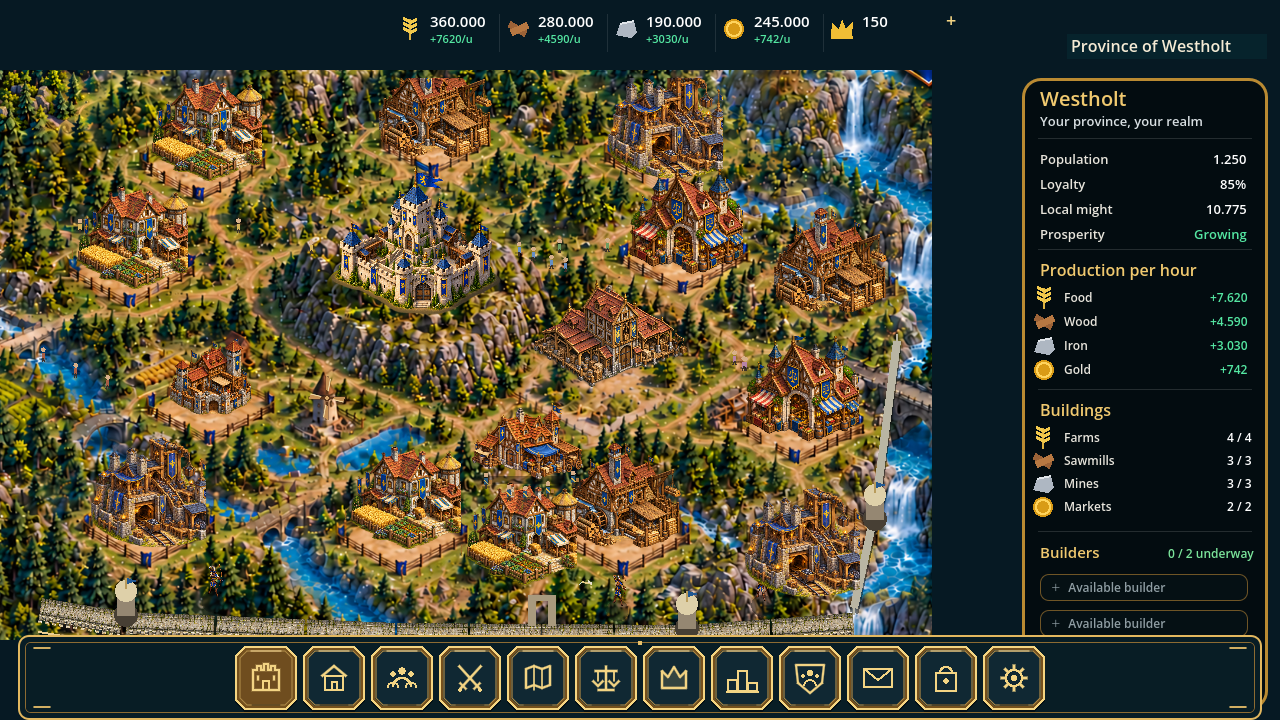
Open Buildings and select a farm in Westholt. Read its current level, requirements, cost and duration. The walkthrough asks for a level 2 farm. Confirm only when every required resource is covered, then wait for the upgrade to finish.
Next inspect the castle requirements for level 2. If the button is unavailable, check missing resources and occupied builders. This follows the walkthrough; it is not a mandatory optimal build order for every player.
4. Claim a completed goal
Open Goals in the shop. Completed goals appear first. Claim an available reward and check the updated status after confirmation. Reaching a goal and actually claiming its reward are separate steps.
Distinguish goal rewards from optional purchases and rewarded ads. Read the conditions next to the relevant action. This website does not promise fixed starting resources or reward amounts.
5. Understand your province
Tap the province name at the top right to switch between unlocked areas. My realm lets you compare their stocks. Westholt, Elderveld and IJzerwaard each have their own food, wood and iron. Gold and the army belong to the realm as a whole.
Wood in Elderveld is not automatically available to a construction order in Westholt. Check the selected province first. The province guide explains transport, carrying capacity and reserved storage. You do not need another province to finish the introductory explanation.
6. Check food before training many troops
Open Army → Train, choose an available unit and start with a manageable quantity. Read total costs and training time. A locked unit may require higher castle or barracks levels; extra gold alone will not unlock it.
Check food upkeep too. The online capital calculation subtracts army and population upkeep from production. Positive gross production therefore does not guarantee positive net food. MAX shows affordability, not the best army size for your economy.
7. Learn army status and cooperation
In My army, total means at home plus away. Units in training join that total only when finished; wounded troops are temporarily unavailable. Open Hospital to inspect beds, the waiting list and recovery. You do not need a battle to learn these screens.
An alliance can help with ongoing upgrades. Messages and world chat let you contact players. Never share sign-in codes. Before your first attack, check the target, available troops, protection rules and confirmation screen.
8. End your first session with a plan
Check ongoing construction and training, your food balance and travelling transports. If an order is unconfirmed, check its status or use the offered check action before starting more orders.
Choose one next objective, such as a missing building requirement or more storage. For a problem, note the version, province and exact message. Use the focused guides below to continue without rereading the whole introduction.
Alliance, shop and inventory: the complete guide
Updated on 1 November 2026 for version 0.2.1 (V142), available on Google Play since 30 October. Update the app if a described button is missing. Current in-game prices, limits and requirements take precedence.
Buying from the alliance shop
Open Alliance → Shop. You must currently belong to an alliance to buy here. Choose an item, check its price in Crowns and confirm. It is stored in Inventory: buying a shield does not activate protection.
Each item displays its current price, base discount and any temporary theme discount. Check before confirming; older price lists may differ. The shop also offers construction speedups and a permanent golden profile frame.
If you lack Crowns, the screen shows the shortage. Buy Crowns opens the regular shop; an actual purchase requires a separate confirmation. You can leave without buying.
Using your inventory
Tap the Inventory backpack in the bottom menu. It holds shields, healing tokens, construction speedups, relocation tokens and your profile frame. Purchases and earned rewards are stored first; using them is a separate action.
Purchased items remain yours when you leave an alliance and can still be used. Buying more from the alliance shop requires membership again. Owning an item and activating it are separate steps.
Activating a stored shield
Open Inventory, choose a shield duration and confirm with Activate shield. It protects your entire realm. Check the protection status and expiry time afterwards.
An outgoing attack can prevent activation; the protection duration limit is also checked. Launching your own attack breaks your shield. If activation fails, read the message and check movements before buying another shield.
Treatment and healing tokens
Open Hospital, select available wounded troops and start treatment first. Check cost, capacity and duration. A healing token speeds up an existing treatment; it does not automatically treat all wounded troops.
Healing tokens come in 5-minute, 30-minute and 2-hour durations. Check current prices in the alliance shop. You may also earn tokens through alliance goals. Select a token for an active treatment and confirm its use; no additional Crowns are charged.
Only that treatment is affected. Unused time is lost: using a 30-minute token with 12 minutes remaining does not transfer the other 18 minutes to another treatment. Check the updated timer or completed recovery afterwards.
Using a relocation token
A token bought in the alliance shop is stored in Inventory. Select it and use Open world map. Choose a valid destination for your realm and review the confirmation before accepting.
One token is consumed only when the move is confirmed. This is different from transporting food, wood or iron between your own provinces. For resources, use Trade and check origin, destination, stock, free storage and carrying capacity.
Free construction help
Start a construction job and choose Ask for building help. Open Alliance → Building help to see requests or help another member. Requesting and giving help costs no Crowns or resources.
The screen shows limits and any cooldown. Current rules describe up to five distinct helpers per job, one percent of the original construction time per helper, and up to ten help actions daily. Available buttons and current server state determine what you can do now.
Guildhall and the shared weekly mission
The top of Guildhall contains a gold-bordered weekly mission card with actual progress. View weekly mission opens the details and provides a route to Building help.
Help one another twenty times to award the alliance one hundred alliance points once. A new mission starts every Monday at 00:00 Netherlands time. Alliance points unlock levels and emblems; they are not Crowns or extra resources.
This in-game mission is separate from the website's weekly contest. That contest asks for a strategy tip and an administrator selects the winner under its published rules. Giving construction help does not enter the website contest.
Alliance ranking and member lists
Open Rankings for the alliance ranking. It adds the most recently recorded power of current members. Combined power is not attack strength and does not predict a battle result.
Choose View members for a public roster, or use the message button to compose a private message. Alliance ranking is no longer a separate alliance-sidebar button; find it under Rankings. Players without an alliance can still search and apply.
An order remains unconfirmed
If you see Loading or Order unconfirmed, wait for the connection and use Refresh / retry. This checks the same pending order. Do not repeatedly create new purchases because a confirmation is delayed.
Check both your Crown balance and inventory quantities. If the issue persists, open Settings → Info & help → Support. Include player ID, app version, item, time and exact message. Never share passwords or verification codes.
Shared alliance donations: progress that stays
Open Alliance → Donate and choose a reward goal. Members choosing the same goal contribute to the same pot. Select a resource and quantity, check the points and press Donate once. Resources are deducted immediately, without a second confirmation.
Each unit of wood or food earns 1 point, iron 2 and gold 4. The pot and your contribution remain across days. A daily donation allowance does not reset the shared pot.
Completion requires at least 3 qualifying contributors. Each member can supply at most 40% of the target and must contribute at least 5% to earn the reward. For the first 6,000-point healing goal, this means a 2,400-point maximum and a 300-point minimum per member. You must still belong to the alliance when it completes.
Targets: 6,000 points for 5-minute healing; 9,000 for a 5-minute construction speedup; 24,000 for a 1-hour shield; 30,000 for 30-minute healing; 36,000 for a 30-minute construction speedup. Check the selected goal and your remaining allowance in the game.
Eligible members automatically receive a token. The notification offers Go to Inventory and Understood; the item is not used automatically. A new empty pot then appears. This is separate from the Guildhall weekly mission and the website contest.
Using construction speedups and a profile frame
Open Inventory and select a 5-minute, 30-minute or 2-hour construction speedup. Choose an active job and check the building, province and remaining time. Use token speeds up that specific job. With no active jobs, the token remains stored.
The golden profile frame is a permanent cosmetic item. Enable or remove it in Inventory. It does not strengthen your army or production.
Resource expeditions on the world map
From castle level 5, choose a lumber camp, food field, iron mine or gold mine on the world map. Read its level, guard strength, potential yield and gathering time. Select your army, including carriers; siege units carry no loot.
Easy, Even match and Too strong are estimates, not guarantees. Troops can be wounded or killed. Check travel, gathering and return time before departure. Only surviving carriers bring loot, stored on arrival up to available storage capacity.
You can send up to 6 resource expeditions per day. A used location recovers for you after 2 hours; each player has a separate supply. Read any cooldown, castle-level or daily-limit message before retrying.
Reading battle reports
After a battle, check survivors, wounded, losses and loot in the report. Compare it with your hospital and returning troops: a result does not mean everyone is already home.
Wounded troops who cannot be admitted to the hospital are lost. Plan space and treatment before an expedition. A higher ranking score does not guarantee victory over a particular defence.
Transport using From, To and Max
Open Trade and choose From and To first. Check province names, stock, free storage and carrying capacity. Use sliders or quantities for food, wood and iron. Max respects the current selection and available limits.
Gold is shared across your realm and does not need transport between your provinces. Resource transport is different from relocating your realm, which uses a relocation token on the world map.
Notifications, online status and reconnecting
Enable notifications in the game and allow them in Android if you want game alerts. Use the same linked Google account for your realm. An online indicator is a recent status, not a promise of an immediate reply.
After reconnecting, let server data load first. Do not repeat unconfirmed purchases or donations. Check inventory, balance and goal progress; use Refresh when offered. For persistent issues, send support your player ID, app version and exact message, never passwords or verification codes.